


Video Meeting
4.167.00 Reviews
App Specs
- Version
- 15.0
- Updated On
- License
- Free
- Downloads
- 100,000+
- Developer
- Video Meeting and Conference App
- Categories
- Communication
- Platform
- Android
Screenshots





 Analysis by AppCompare
I tend to judge a video-calling app by one practical question: can I get another person into a useful conversation without turning the setup into a project? That matters when a meeting is short, someone is joining from a phone, or the people involved do not want to make another account. Video Meeting is built around that low-friction idea, and it makes the most sense when you treat it as a quick way to connect rather than a complete office suite.
Why joining without signup matters
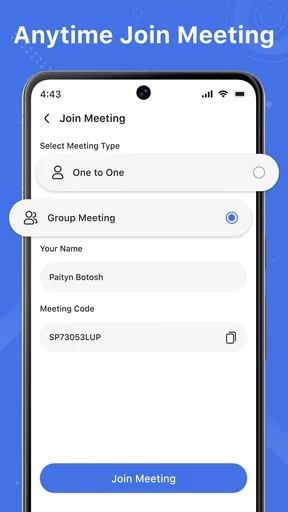
The most distinctive promise here is that people can connect without signing up. In everyday use, that can remove an awkward step: instead of asking a relative, client, or volunteer to create credentials before a brief call, you can focus on getting the conversation started. That is especially useful when the other person is not comfortable with technology or only needs to join once.
There is a trade-off, though. A signup-free path is convenient for guests, but it does not automatically answer questions about how a meeting is arranged, who controls access, or what information participants need before they join. I would make those details clear in the invitation itself and avoid assuming that “no signup” means “no preparation.” For recurring work with a stable team, a service built around persistent accounts and shared team spaces may feel more orderly.
Using Video Meeting for real conversations
This is a free communication app from Video Meeting and Conference App, and its focus is video meetings rather than messaging alone. It has an average rating of four stars from around 150 ratings, with more than 100,000 installs. It is rated for everyone, and version 10.0 runs on Android 7.0 or later. Those details make it approachable for a broad range of Android users, though the actual experience still depends on each participant’s device and connection.
How I would use it in practice
Imagine I need to talk a family member through a form while we are both away from home. A quick video conversation is more helpful than a long string of texts: I can explain a confusing point, respond to questions as they come up, and keep the exchange focused. For a small club or informal group, the same approach can work for a planning discussion where people need to talk through decisions rather than simply read announcements.
For a better first call, I would send the meeting details with a plain explanation of what the other person should do next. I would also agree on a backup plan, such as switching to an ordinary phone call if video is unreliable. That small bit of preparation matters more than it sounds: it prevents a short conversation from becoming a troubleshooting session, particularly when one participant is joining from a weak connection or an unfamiliar device.
The no-signup angle is most valuable when participants are occasional guests. If everyone already uses a workplace platform every day, asking them to move to a separate app may add friction rather than remove it. Before making it the default for a team, I would try it with the exact mix of people and devices who will attend, then decide whether the joining process suits the group.
Worth Reading Before You Choose

EA SPORTS FC Mobile 26 Is a Bigger Football Game, but It Takes Time

Flipboard Shows What News Apps Must Do Beyond the Feed

Switching to Android Auto Means Rethinking Your Driving Routine

Google Calendar Makes a Crowded Week Easier to Manage

Ludo King Makes the Most of the Minutes Between Plans

Baby Panda World Brings Quick Play to Modern Phones, but Its Game Library Feels Busy
Where it fits among video-call options
Compared with familiar meeting tools that emphasize work accounts, calendars, and persistent collaboration spaces, this app’s appeal is its simple purpose: get people together for a video meeting. That can make it a sensible alternative for casual calls or one-off discussions when the group does not want a larger collaboration setup. It is less compelling if your routine depends on keeping project conversations, shared files, schedules, and meeting history in one place.
Messaging apps are often the easiest choice when everyone already has the same one installed and the call is informal. A dedicated meeting app can be a better fit when the conversation itself is the point and you want to invite people specifically for that purpose. I would choose based on the guests, not on a general idea that one kind of app is always superior: familiarity often beats a longer feature list for a quick call.
Small habits that make a call smoother
For a meeting that involves more than two people, I would send a short agenda in the invitation or in the message that accompanies it. This gives late arrivals a way to understand the topic and helps prevent the call from drifting. If the discussion is about a decision, tell participants what they should bring or decide beforehand. Those steps do not depend on special app features; they make the meeting more useful regardless of which service the group uses.
I would also keep sensitive details out of any casual invitation unless the group has agreed on a suitable way to share them. A video call may feel private because it is conversational, but people still need to think about what they show on screen and who else might be nearby. For a confidential business discussion, I would compare the app’s access controls and privacy information with the organization’s requirements before relying on it.
One practical question is whether a guest can join easily on their particular device. The signup-free approach points toward a lighter entry process, but guests should still be told what to install or open and should test their audio before an important appointment. I would not schedule a high-stakes conversation without allowing time for that first connection, especially if participants are unfamiliar with video calls.
Trade-offs to consider before relying on it
A video meeting is only as comfortable as its weakest connection. If someone’s network is unstable, a call may be less useful than audio or a written exchange, even when the app is intended for video. I would keep the purpose in mind: a visual conversation helps when facial expressions, demonstrations, or immediate discussion matter; it is unnecessary overhead for a simple update that could be sent as a message.
Another consideration is consistency. A tool that works well for an occasional guest call may not provide the organizational structure a busy team expects from its everyday platform. If you need a dependable archive of decisions, carefully managed access, or a tightly connected workflow, check those needs before moving routine meetings here. For family catch-ups and informal appointments, the lighter approach may be precisely the point.
Readers may also wonder whether it suits webinars. The app is positioned for meetings and webinars, so it is relevant to people planning a presentation-style gathering. I would still plan the session around the audience: keep instructions simple, share the joining details early, and have a clear way to handle questions. A small interactive presentation is different from a large event that needs extensive registration and production controls, so the latter may call for a more specialized service.
Who is likely to get the most from it?
I would recommend trying it if you often need to bring together people who do not want another account, or if your calls are occasional and straightforward. It may be a particularly comfortable option for a family member who prefers a direct invitation over managing another profile, or for a community organizer arranging a short planning call with rotating participants.
On the other hand, I would steer a team toward its existing meeting platform if members already rely on shared calendars, ongoing chat, and established work processes there. I would also choose a different option for a call where the organization has strict requirements around identity, retention, or administration unless those requirements have been checked against the app’s current terms and controls. Convenience is valuable, but it should not replace a deliberate choice about sensitive meetings.
A grounded recommendation
With a 4.0 average and a free price, Video Meeting is easy to consider for low-pressure calls where reducing guest setup is more important than building a complete collaboration workspace. Its rating and install count suggest that people are giving it a try, but neither number tells me whether it fits a particular group’s habits. I would test the joining experience with one friend or colleague before making it part of a recurring routine.
My practical advice is to use it for the conversations it appears suited to: a quick catch-up, a small group discussion, or a presentation where straightforward access matters. Set expectations in advance, keep a backup plan for connection trouble, and use a more established or specialized service when your team needs deeper workflow or administrative controls. That way, the app’s main convenience works in your favor without asking it to solve problems that belong to a broader meeting platform.
Getting Started with Video Meeting
Diving into Video Meeting is a breeze. The app is available for both Android and iOS, so you can download it from your respective app store. Once it’s installed, the setup process is straightforward and user-friendly. You’ll be prompted to create an account, which is super quick—just the usual email and password, or you can fast-track it with a social media login.
The interface is sleek and modern, with a minimalist design that doesn’t overwhelm you with options. Trust me, you won’t be scratching your head trying to figure out where everything is. I appreciate how intuitive it is, making it accessible for anyone from tech newbies to seasoned pros.
Features That Stand Out
Alright, let’s dive into the features. First off, the video quality is top-notch. Even with a shoddy internet connection, the app manages to keep things running smoothly. It intelligently adjusts the video quality based on your bandwidth, which is a lifesaver if you’re on the go.
One of the features I absolutely love is the screen sharing option. It’s perfect for presentations or if you’re like me and want to show off your latest meme collection. The app also supports virtual backgrounds. So, you can be chilling on a beach or in a spaceship while attending a meeting. How cool is that?
And let’s not forget about the chat functionality. It’s robust and allows for private messaging, which is handy for side conversations during a call. Plus, you can send files directly through the chat, making it super convenient to share documents or images instantly.
Security and Privacy
In today’s world, security is a big deal, and it doesn’t skimp on this. The app offers end-to-end encryption, ensuring that your conversations stay private. There’s also a range of settings to manage who can join your meetings, including password protection and waiting rooms. It’s nice to have that peace of mind knowing that your virtual meetings are secure.
User Experience and Accessibility
Using Video Meeting feels like a breeze. The developers have really thought about user experience, making sure everything is just a tap away. The app supports multiple languages, which is fantastic for international teams. And if you’re someone who needs accessibility features, this app has got you covered with options for screen readers and voice commands.
Also, the app integrates seamlessly with popular calendar apps, so you can schedule meetings and send invites without jumping through hoops. It’s these little touches that make a big difference in usability.
Final Thoughts
All in all, Video Meeting is a solid choice for anyone needing a reliable and feature-rich video conferencing app. Whether you’re using it for work, catching up with family, or hosting a virtual game night, it’s got everything you need to make your meetings run smoothly.
So, if you’re ready to upgrade your meeting experience, give it a try. It’s got my stamp of approval, and I bet you’ll love it too. Happy video chatting!
Pros
- User-friendly interface for easy navigation.
- High-quality video and audio streaming.
- Supports large group meetings seamlessly.
- Cross-platform compatibility for convenience.
- End-to-end encryption for secure calls.
Cons
- Occasional connectivity issues in low bandwidth.
- Limited features in the free version.
- Some devices experience lag during calls.
- High data consumption for long meetings.
- Minimal customization options for interface.
FAQs for Video Meeting
What features does Video Meeting offer for seamless communication?
Video Meeting provides a range of features including high-definition video calls, screen sharing, and real-time messaging. Users can schedule meetings directly from the app and integrate with popular calendar systems. The app supports both one-on-one and group meetings, making it versatile for personal and professional use.
Is Video Meeting secure for business communications?
Yes, Video Meeting ensures security with end-to-end encryption and password-protected meetings. The app complies with industry-standard security protocols, ensuring that all communications are private and protected. Additionally, host controls allow for managing participants, ensuring only authorized users can join.
Can Video Meeting be used on multiple devices?
Absolutely, Video Meeting is available on both Android and iOS platforms, allowing users to join meetings from smartphones, tablets, or desktops. The app provides a consistent experience across devices, ensuring you can stay connected whether you're at home, in the office, or on the go.
How does Video Meeting handle connectivity issues?
Video Meeting is designed to adapt to varying network conditions. It automatically adjusts video quality based on available bandwidth to ensure smooth communication. If a connection drops, the app attempts to reconnect quickly, minimizing disruptions during important calls.
Are there any costs associated with using Video Meeting?
Video Meeting offers a free version with essential features suitable for casual use. For enhanced functionality, such as larger meeting capacity and advanced security features, there are various subscription plans available. Users can choose a plan based on their specific needs and budget.


